> ## Documentation Index
> Fetch the complete documentation index at: https://docs.useorgx.com/docs/llms.txt
> Use this file to discover all available pages before exploring further.
# OpenClaw Plugin Setup
> Connect the OrgX OpenClaw plugin using secure browser pairing or a manual API key.
## Browser pairing
`bash openclaw plugins install @useorgx/openclaw-plugin `
Visit `http://127.0.0.1:18789/orgx/live` from your OpenClaw runtime.
Click **Connect OrgX** in the onboarding panel.
Sign in at [useorgx.com](https://useorgx.com) and approve the OpenClaw
connection.
The plugin stores a dedicated credential. Confirm the connected state in the
plugin before using OrgX tools.
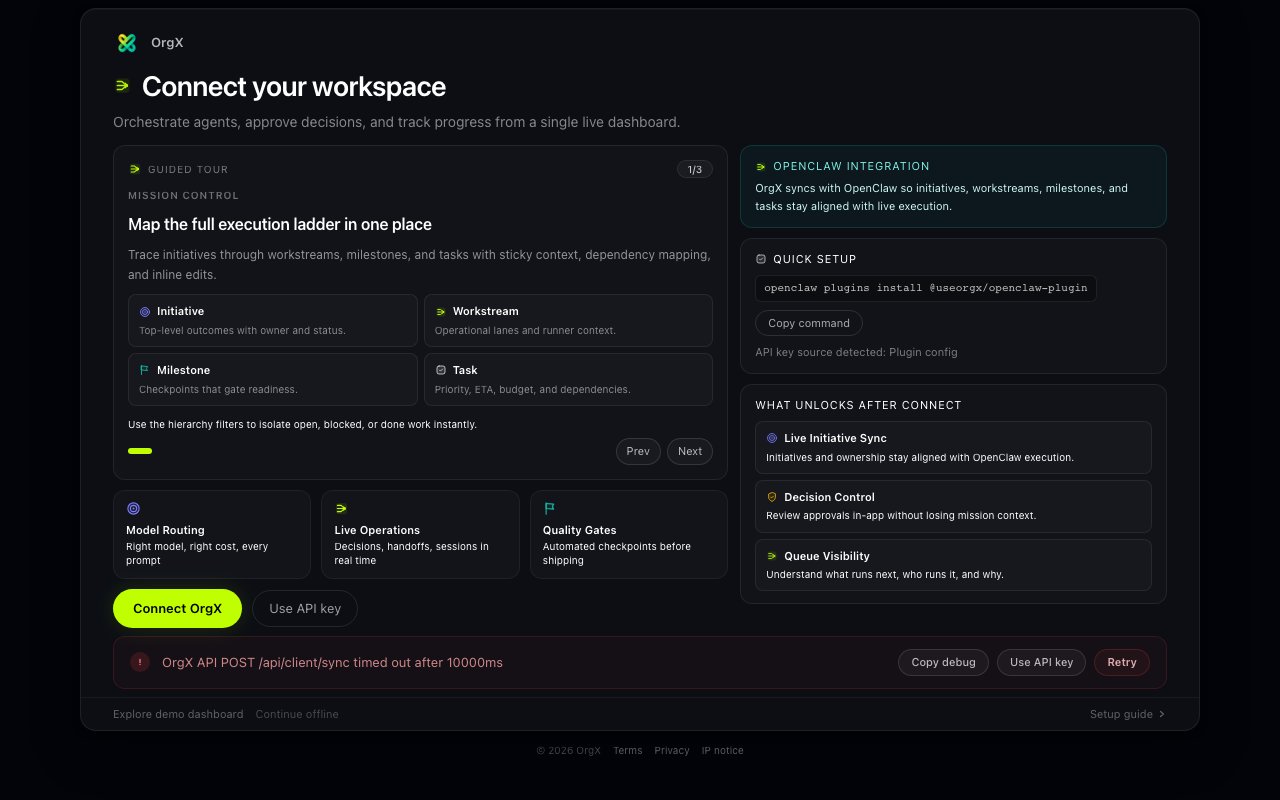 ## How Pairing Works
1. OpenClaw requests a short-lived pairing session from OrgX.
2. OrgX opens a secure browser confirmation page tied to that session.
3. After confirmation, OrgX provisions a plugin-scoped key for that installation.
4. OpenClaw receives the key, stores it locally with restricted file permissions, then acknowledges receipt.
Pairing sessions expire automatically after 10 minutes for security.
## Manual Key Fallback
If browser pairing is blocked, use **Use API key instead** in onboarding.
### Step-by-step (With Screenshots)
1. Open OrgX settings and go to API keys:
* `https://useorgx.com/settings#security`
2. Generate a new API key (keep it private).
## How Pairing Works
1. OpenClaw requests a short-lived pairing session from OrgX.
2. OrgX opens a secure browser confirmation page tied to that session.
3. After confirmation, OrgX provisions a plugin-scoped key for that installation.
4. OpenClaw receives the key, stores it locally with restricted file permissions, then acknowledges receipt.
Pairing sessions expire automatically after 10 minutes for security.
## Manual Key Fallback
If browser pairing is blocked, use **Use API key instead** in onboarding.
### Step-by-step (With Screenshots)
1. Open OrgX settings and go to API keys:
* `https://useorgx.com/settings#security`
2. Generate a new API key (keep it private).
 3. In OpenClaw onboarding, choose **Use API key instead**.
4. Paste the `oxk_...` key and submit.
3. In OpenClaw onboarding, choose **Use API key instead**.
4. Paste the `oxk_...` key and submit.
 5. On success, onboarding should show **Connected**. Run the read-only status
or sync check before relying on the connection.
Manual key fallback is for auth recovery. It does not grant GitHub, Linear, or
other provider permissions; those connections require their own documented
authorization.
## First-Run Validation Checklist
Onboarding status changes to **Connected**
The dashboard loads the connected session and available activity
`orgx_status` returns OrgX workspace data from the plugin tools
The first status or sync request completes on a healthy network
## Troubleshooting Matrix
| Symptom | Likely Cause | Action |
| ------------------------------- | ------------------------- | --------------------------------------------------- |
| Pairing never completes | Browser tab not confirmed | Re-open connect URL and approve |
| Pairing expired | Session timeout | Start pairing again from dashboard |
| Connected then reconnect prompt | Key revoked/invalid | Run browser pairing again or paste a new manual key |
| Manual key validation fails | Wrong/expired key | Generate a fresh API key and retry |
| Dashboard shows partial data | OrgX API transient issue | Refresh status and retry sync |
## Rotate, Revoke, Reconnect
1. Revoke plugin credentials from OrgX API key settings when rotating access.
2. In OpenClaw onboarding, click disconnect (or clear and reconnect).
3. Run browser pairing again to mint a fresh installation-scoped credential.
## Security Notes
* The plugin stores its installation credential in the local OpenClaw runtime.
Treat the runtime's credential store as sensitive.
* Browser pairing avoids copy/paste secret handling on the primary path.
## What the Plugin Enables
The OpenClaw plugin gives you more than onboarding:
| Capability | What you get |
| -------------------------------------------------- | ------------------------------------------------------- |
| Local MCP bridge (`/orgx/mcp`) | Call OrgX tools without separate hosted MCP OAuth setup |
| Domain-scoped MCP endpoints (`/orgx/mcp/{domain}`) | Safer default tool exposure by domain |
| Live dashboard (`/orgx/live`) | Activity feed, mission control, decisions, run controls |
| Health + diagnostics | Connection, outbox, replay, and runtime status checks |
See the full code-generated tool matrix in [OpenClaw Plugin MCP Tools](/docs/api/openclaw-plugin-mcp-tools).
## Local MCP Bridge Endpoints
| Endpoint | Purpose |
| ----------------------------------------------------------------- | ---------------------------- |
| `http://127.0.0.1:18789/orgx/mcp` | Full plugin MCP tool surface |
| `http://127.0.0.1:18789/orgx/mcp/engineering` (and other domains) | Domain-scoped subset |
If you use the bridge from another local client, follow that client's MCP
configuration flow and verify the resulting tool list.
5. On success, onboarding should show **Connected**. Run the read-only status
or sync check before relying on the connection.
Manual key fallback is for auth recovery. It does not grant GitHub, Linear, or
other provider permissions; those connections require their own documented
authorization.
## First-Run Validation Checklist
Onboarding status changes to **Connected**
The dashboard loads the connected session and available activity
`orgx_status` returns OrgX workspace data from the plugin tools
The first status or sync request completes on a healthy network
## Troubleshooting Matrix
| Symptom | Likely Cause | Action |
| ------------------------------- | ------------------------- | --------------------------------------------------- |
| Pairing never completes | Browser tab not confirmed | Re-open connect URL and approve |
| Pairing expired | Session timeout | Start pairing again from dashboard |
| Connected then reconnect prompt | Key revoked/invalid | Run browser pairing again or paste a new manual key |
| Manual key validation fails | Wrong/expired key | Generate a fresh API key and retry |
| Dashboard shows partial data | OrgX API transient issue | Refresh status and retry sync |
## Rotate, Revoke, Reconnect
1. Revoke plugin credentials from OrgX API key settings when rotating access.
2. In OpenClaw onboarding, click disconnect (or clear and reconnect).
3. Run browser pairing again to mint a fresh installation-scoped credential.
## Security Notes
* The plugin stores its installation credential in the local OpenClaw runtime.
Treat the runtime's credential store as sensitive.
* Browser pairing avoids copy/paste secret handling on the primary path.
## What the Plugin Enables
The OpenClaw plugin gives you more than onboarding:
| Capability | What you get |
| -------------------------------------------------- | ------------------------------------------------------- |
| Local MCP bridge (`/orgx/mcp`) | Call OrgX tools without separate hosted MCP OAuth setup |
| Domain-scoped MCP endpoints (`/orgx/mcp/{domain}`) | Safer default tool exposure by domain |
| Live dashboard (`/orgx/live`) | Activity feed, mission control, decisions, run controls |
| Health + diagnostics | Connection, outbox, replay, and runtime status checks |
See the full code-generated tool matrix in [OpenClaw Plugin MCP Tools](/docs/api/openclaw-plugin-mcp-tools).
## Local MCP Bridge Endpoints
| Endpoint | Purpose |
| ----------------------------------------------------------------- | ---------------------------- |
| `http://127.0.0.1:18789/orgx/mcp` | Full plugin MCP tool surface |
| `http://127.0.0.1:18789/orgx/mcp/engineering` (and other domains) | Domain-scoped subset |
If you use the bridge from another local client, follow that client's MCP
configuration flow and verify the resulting tool list.